Microsoft Office 2024 LTSC Professional Plus
Expanded enterprise suite
Windows 11; Windows 10 LTSC 2019/2021

Not specified
OrganizationsExpanded set of desktop apps
CURRENT
Features and compatibility; no direct installer available

Apps included in the enterprise edition of Office LTSC 2024 Professional Plus.
Check file availabilityVERSIONS AND ACCESS
Expanded enterprise suite
COMPATIBILITY
Exact requirements depend on the Office 2024 edition, architecture and licensing channel.
FEATURES
Return to your documents after the app closes unexpectedly. The app automatically opens documents from the previous session, helping you continue after a crash.
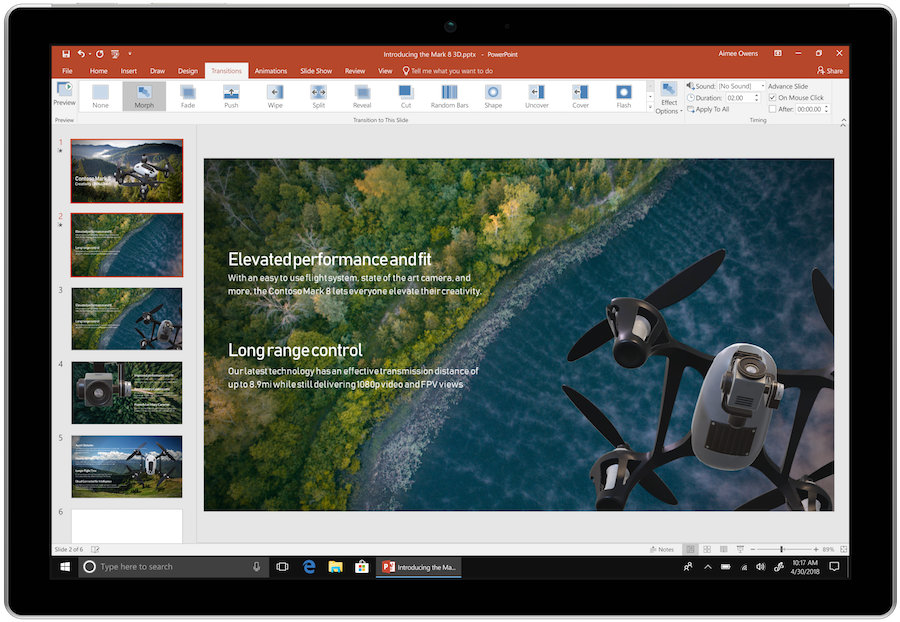
Add your camera image to the slide composition. Place the presenter next to a chart or text and format the image using PowerPoint tools for a consistent presentation.
Save documents, workbooks and presentations in the new OpenDocument version. The updated standard improves exchange with applications supporting OpenDocument; check complex layouts after conversion.
No new features are added to Office LTSC after release. This helps maintain the same toolset across workstations and plan a separate transition to the next release.
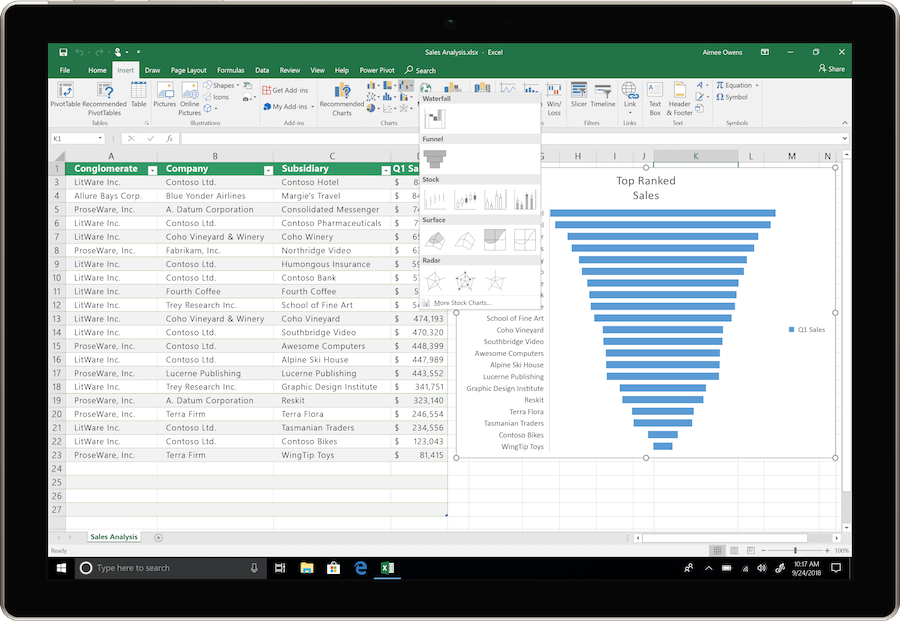
Link an Excel chart to the result of a dynamic formula. When the number of rows changes, the chart will use the updated data range.
Create named Excel functions from ordinary formulas without VBA. You can reuse a common calculation throughout the workbook by passing it different arguments.
Record a PowerPoint presentation with narration, handwritten annotations and video of the speaker. Export it as a video for viewing without a live presentation.
Find accessibility issues in documents, spreadsheets and presentations with built-in tools. Suggestions help prepare materials for people who read in different ways.
Professional Plus for Windows includes Access for working with databases. Create tables, forms, queries, and reports to manage data. This is a separate application in the suite, not an extension of Word or Excel.
HELP CENTER
No direct installer is currently available. — No verified direct English installer is currently listed for this option. Download is disabled; an account, store or installation-guide page is not used as a replacement file. Existing licenses and activation arrangements remain separate.
Access and activation are determined by Microsoft and your existing entitlement. — Use the Microsoft account, work or school account, subscription or perpetual license that covers the selected product and edition. Downloading an installer or opening a guide does not grant a license.
Choose the language through the official installation or app settings. — In the Office Deployment Tool configuration, use the language ID en-us for English. Keep the product ID, update channel, architecture and license consistent with the official deployment guide.
Use the installation path for your actual device and license. — Check the official system requirements, platform, edition and architecture before installation. On Windows, confirm compatibility with existing Office apps and add-ins. Windows installation media cannot be installed on macOS or mobile devices.
Back up your documents and confirm the release’s requirements and support status. — Check Microsoft’s current requirements and lifecycle information for the exact release. A working download link does not establish support or compatibility.